Objective
Students can run a degree audit report in DARS/uAchieve Self Service to determine which classes they need to take to attain their degree. They can access this environment through KSIS.
Audience
Environment
- KSIS
- uAchieve Self Service
Procedure
Before running a degree audit, disable pop up blockers in your browser. For information on how to disable pop up blockers, visit the Disable web browser popup blockers webpage.
Click here to watch
This tutorial explains how to access and view your Degree Audit Report (DARS) through KSIS.
1. Introduction
You will learn the steps to navigate the system and review your academic progress.
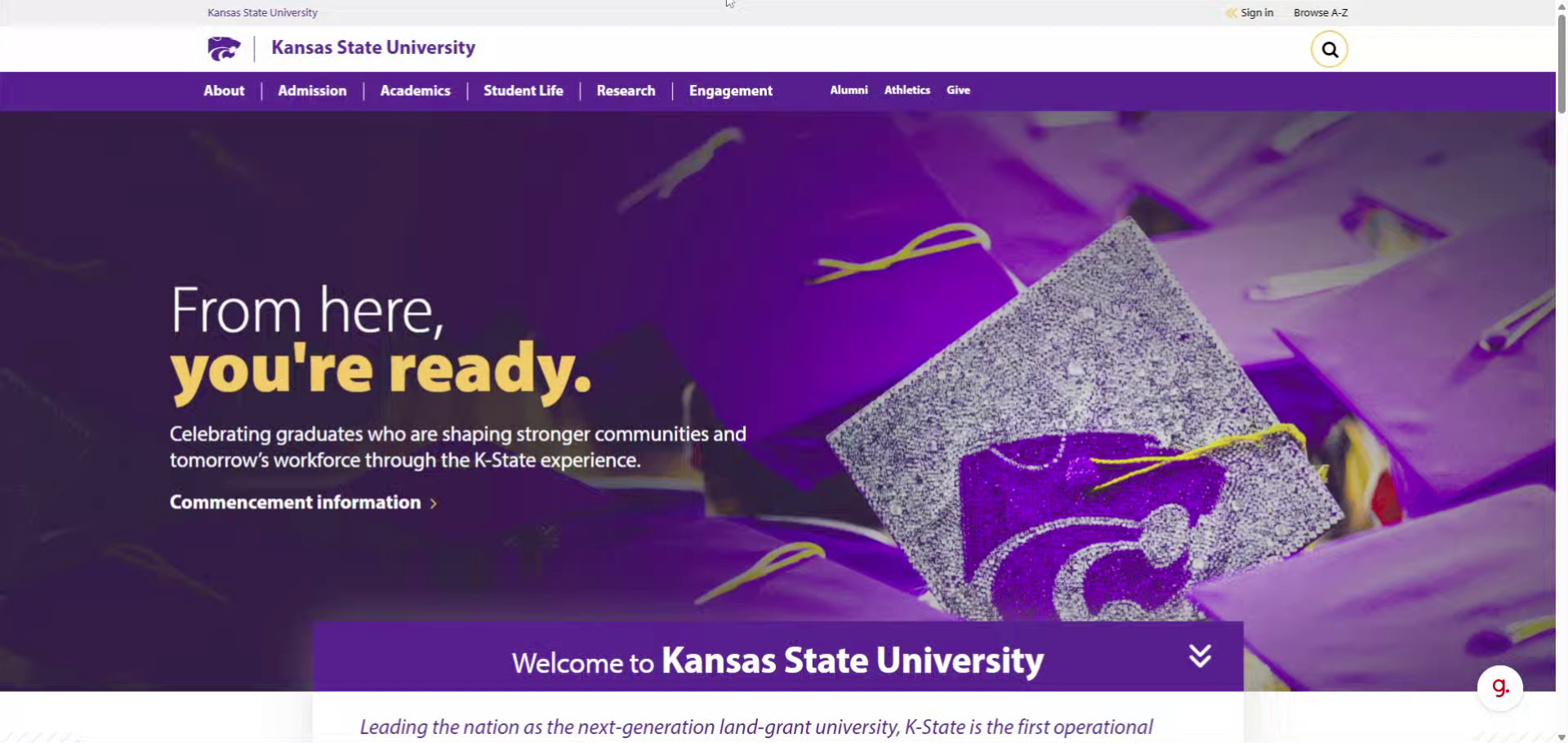
2. Click Sign In Button
Click the Sign in button to begin accessing your K-State account.
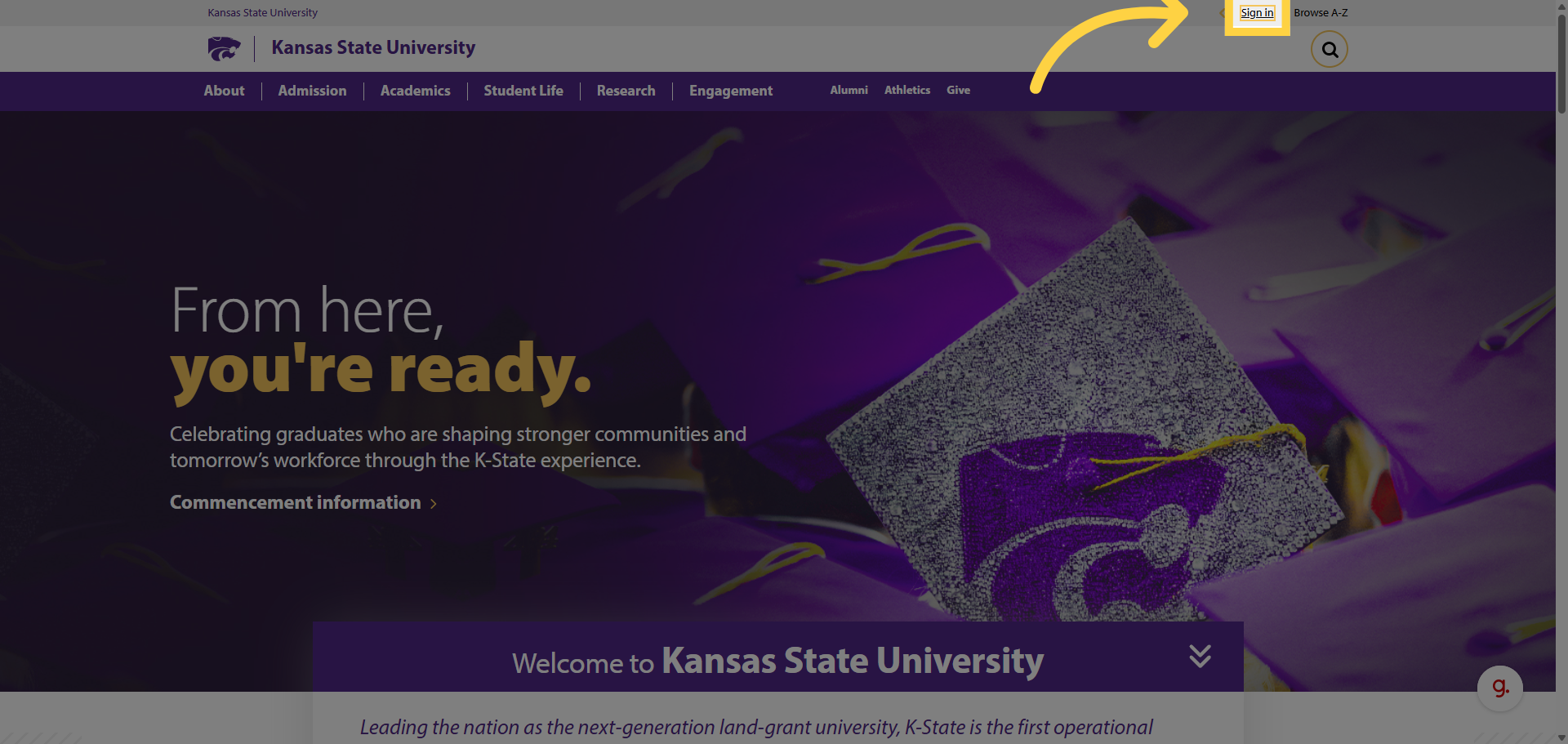
3. Select KSIS
Click KSIS to open the K-State Student Information System.
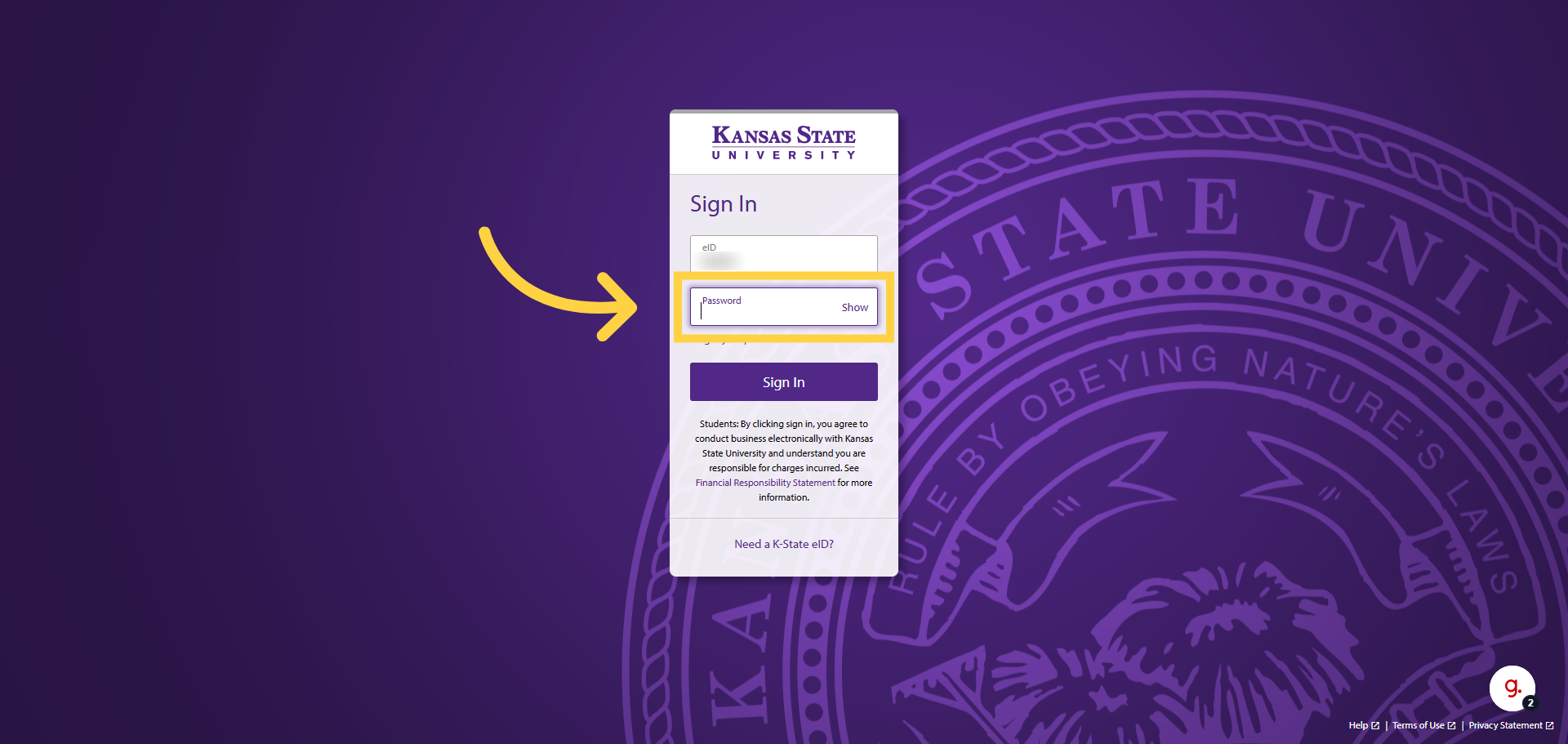
4. Enter credentials
Enter your E.I.D. and password then click Sign In.
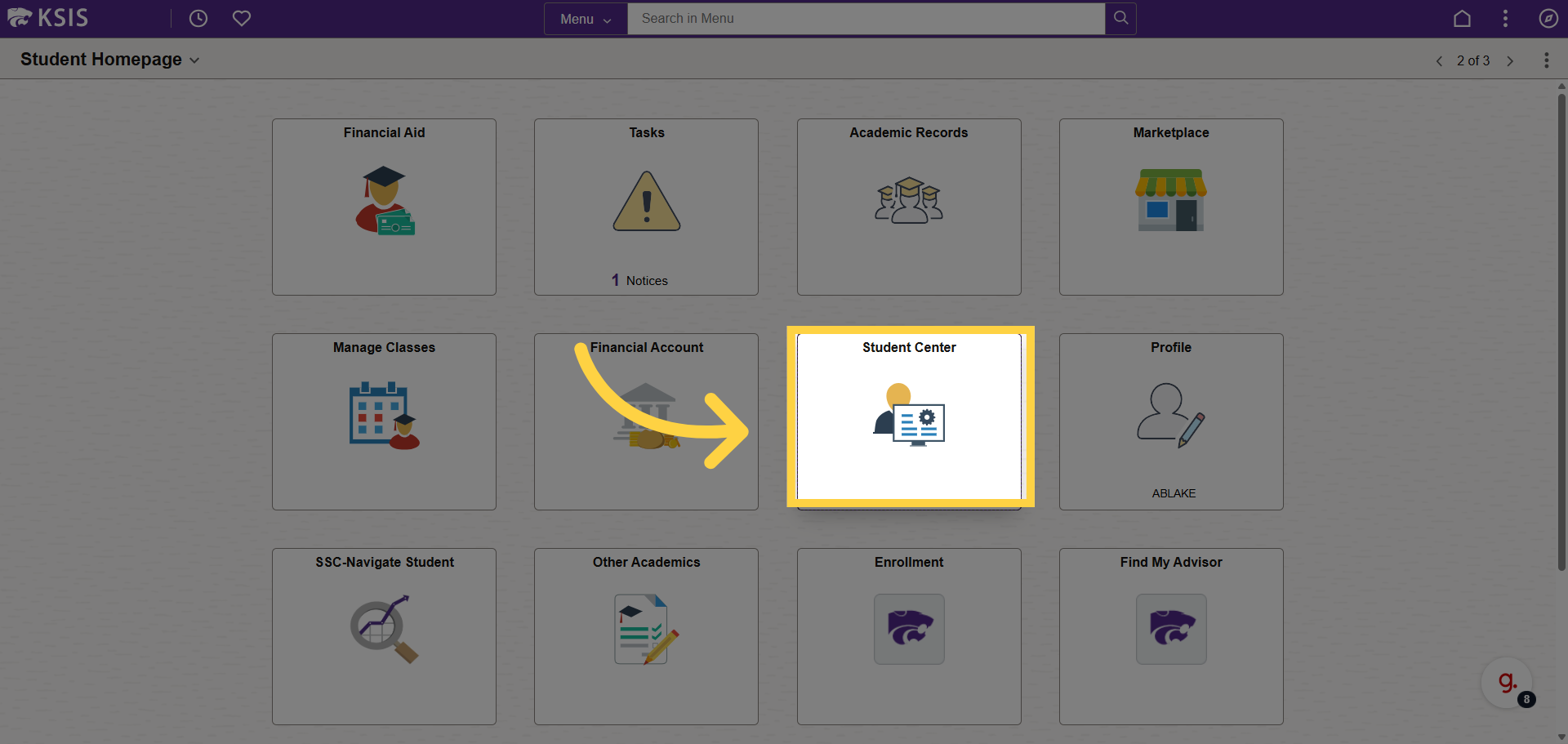
5. Open Student Center
Open your Student Center tile.
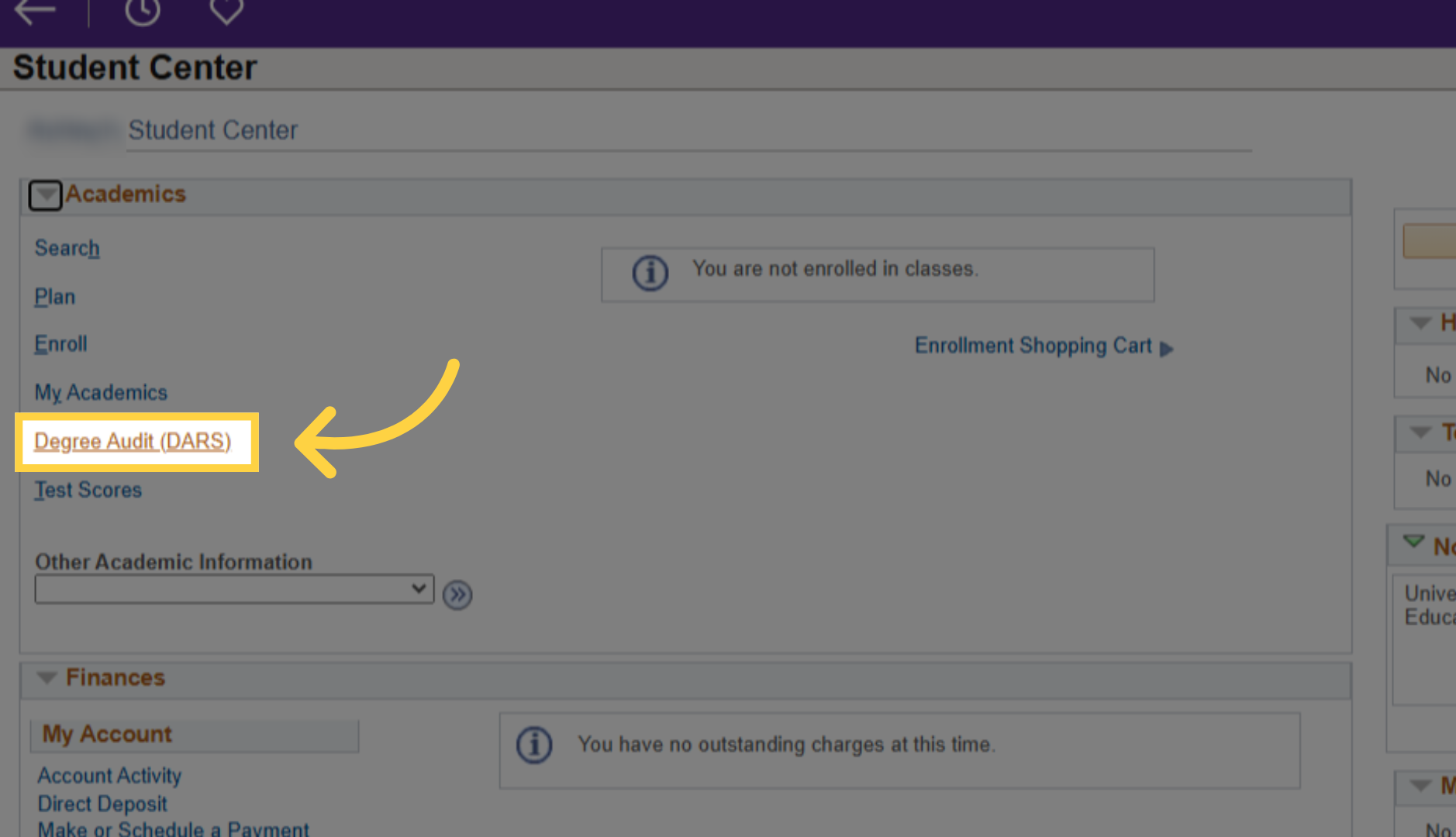
6. Access Degree Audit Section
Click Degree Audit (DARS).
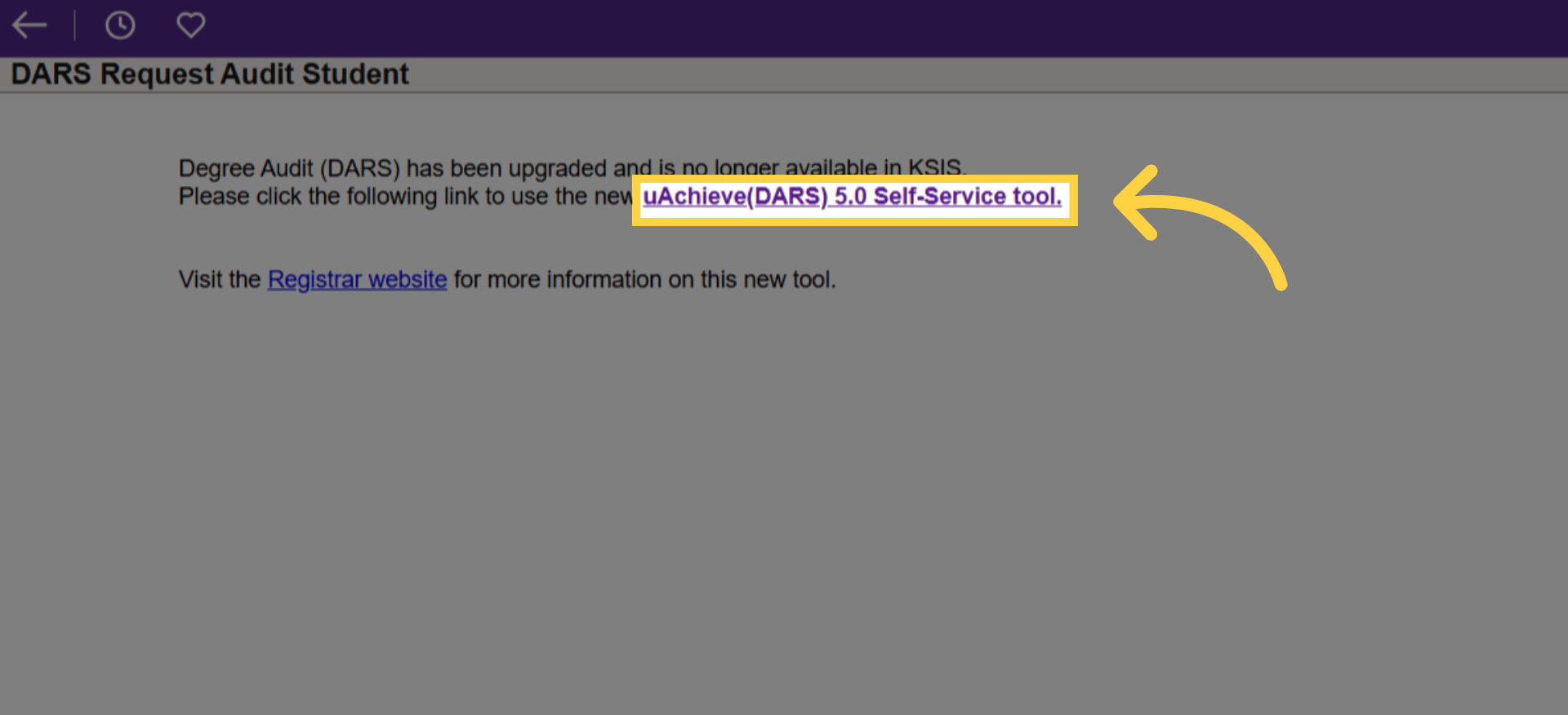
7. Open uAchieve DARS Tool
Then click here to launch the degree audit interface.
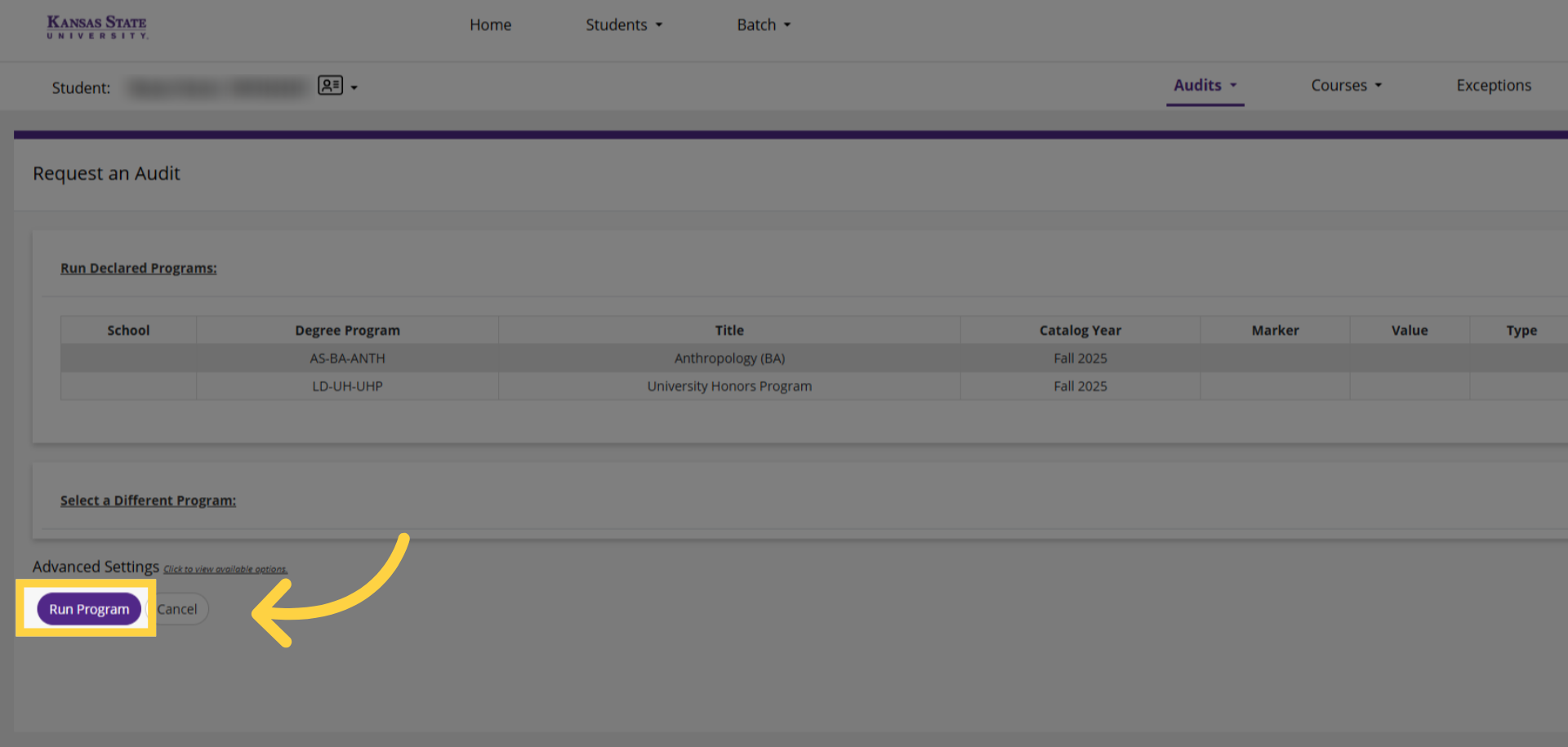
8. Click Run Program
The declared (active) program or programs will display. Click Run Program.
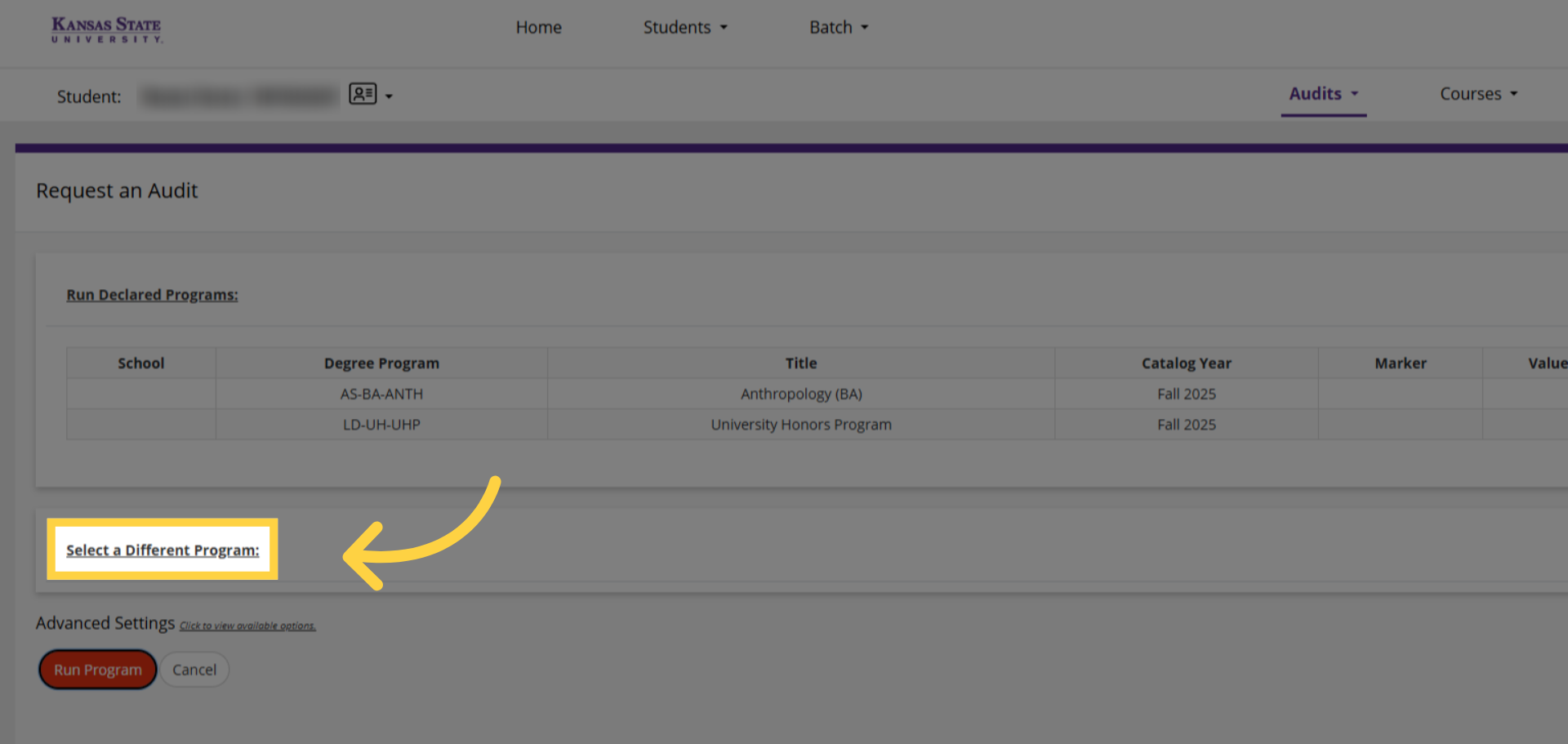
9. Select a Different Program (option)
If you want to see requirements for a program other than the one you have declared, click "Select a Different Program."
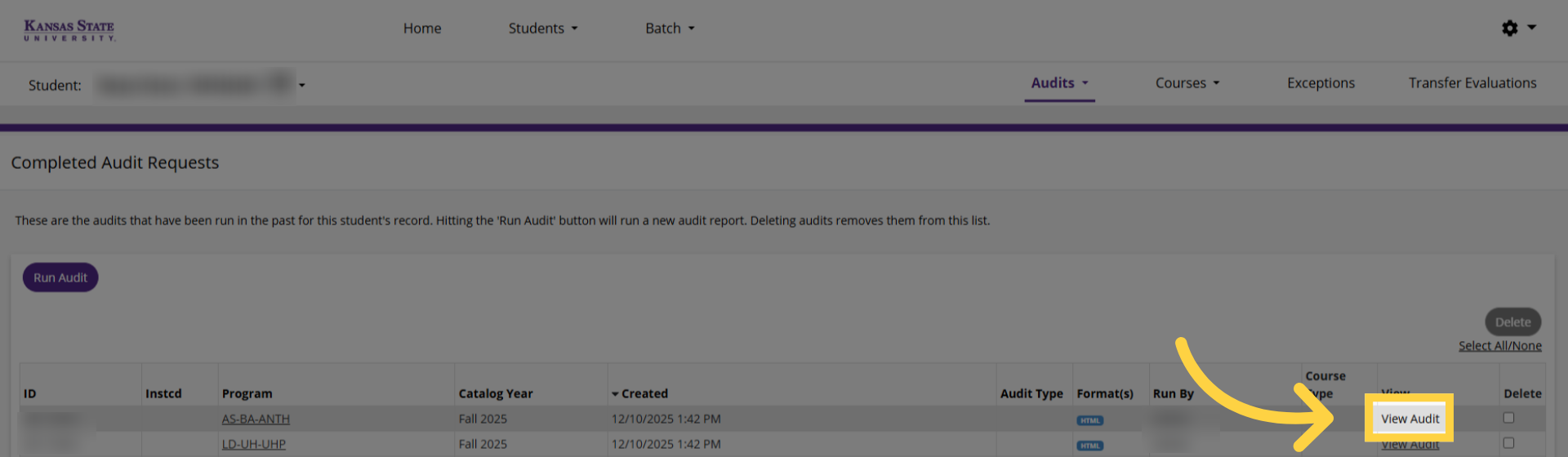
10. View Degree Audit
Click View Audit to open the detailed report.
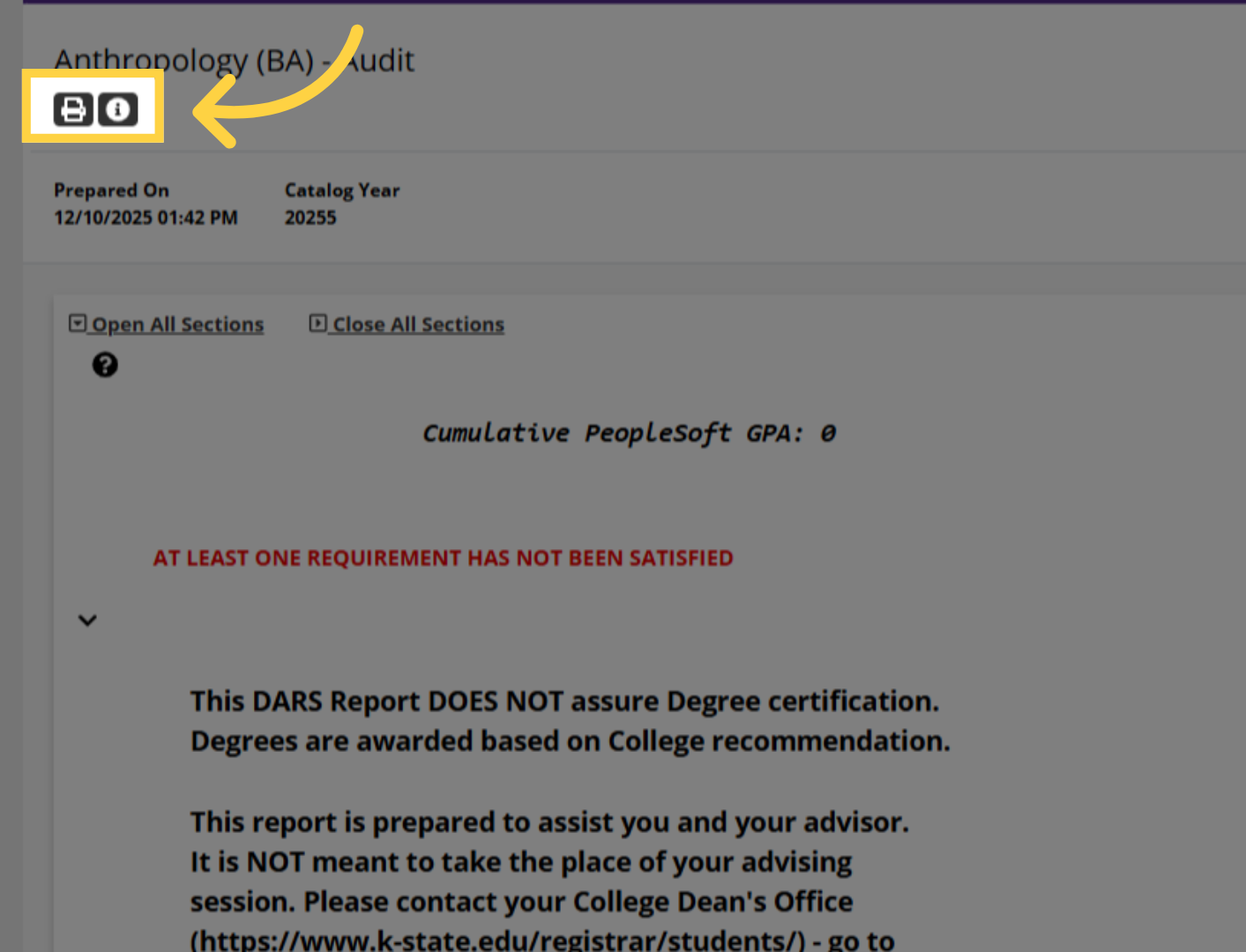
11. Print friendly option
HTML is the default format. Click here to view additional information and create a print friendly view of your audit if preferred.
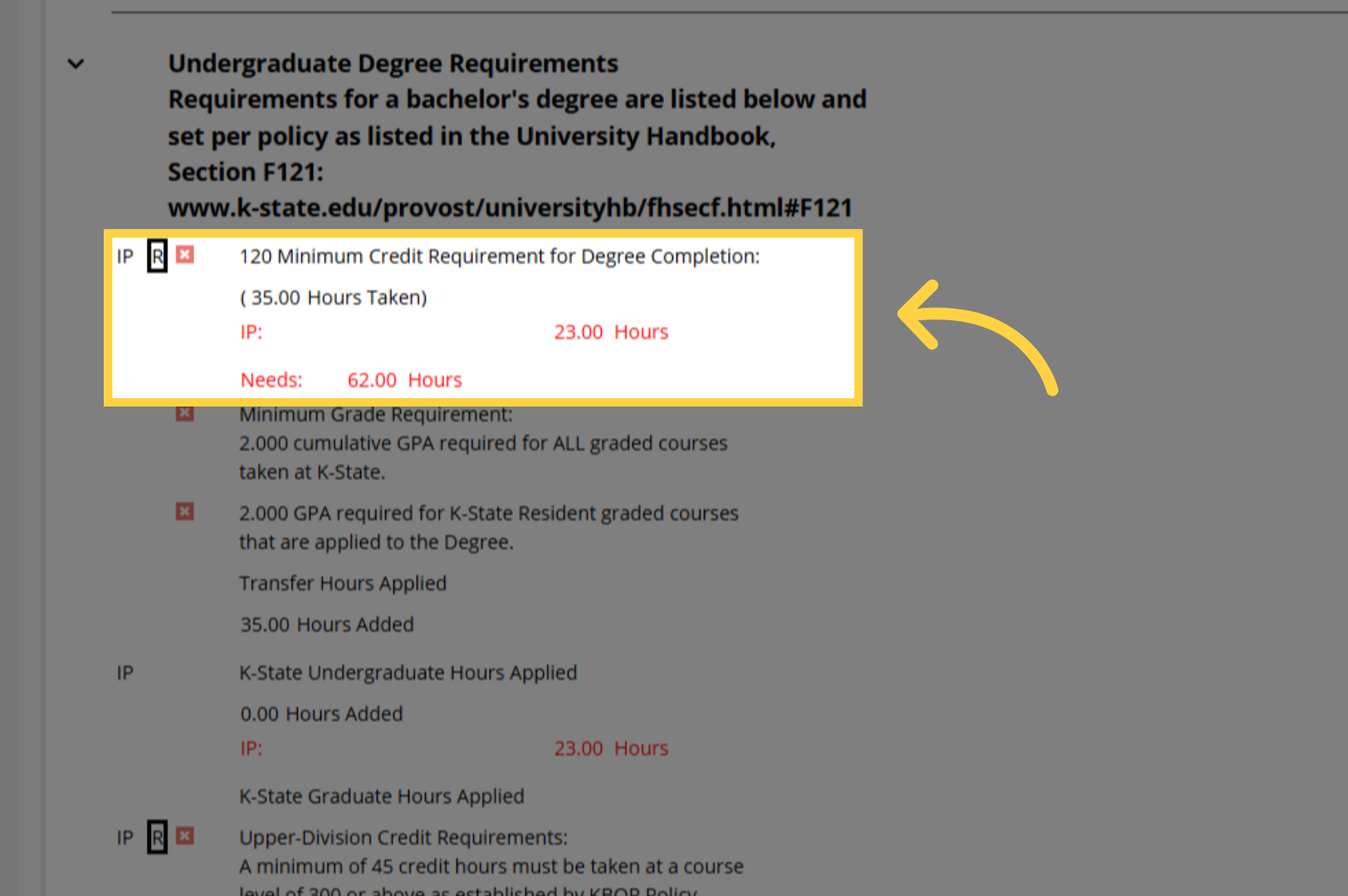
12. Review Undergraduate Degree Requirements
View the Headers for each section to learn more about requirements for your program. Quick note: Degree Audit Reports look different for each program because of the different requirements. Generally speaking, they follow the same format with bold Headers outlining main sections of the curriculum.
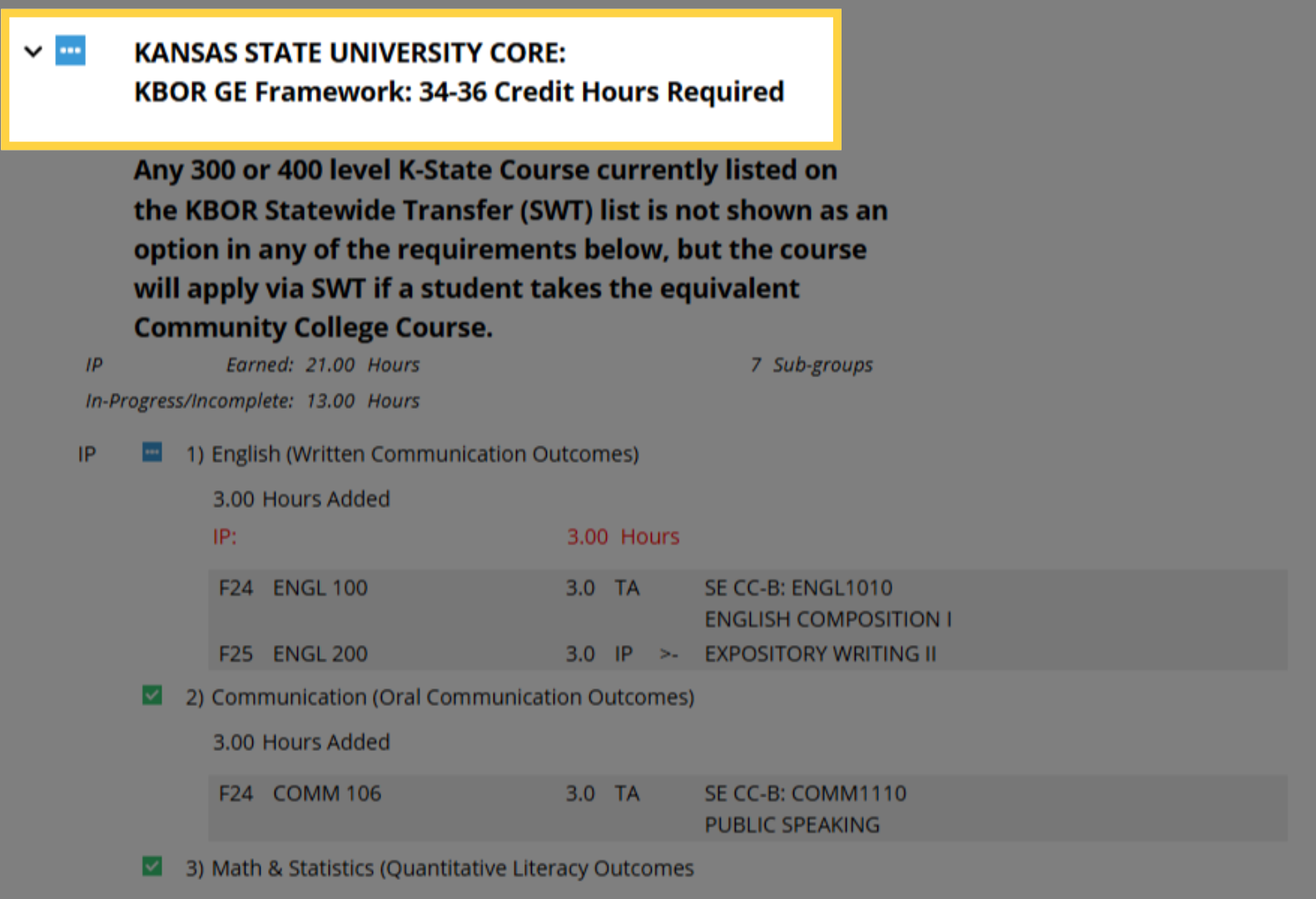
13. View K-State Core Requirements
Review the K-State Core Requirements. As with any area of your DARS, speak with your academic advisor if you have questions about what's applied or isn't applied here.
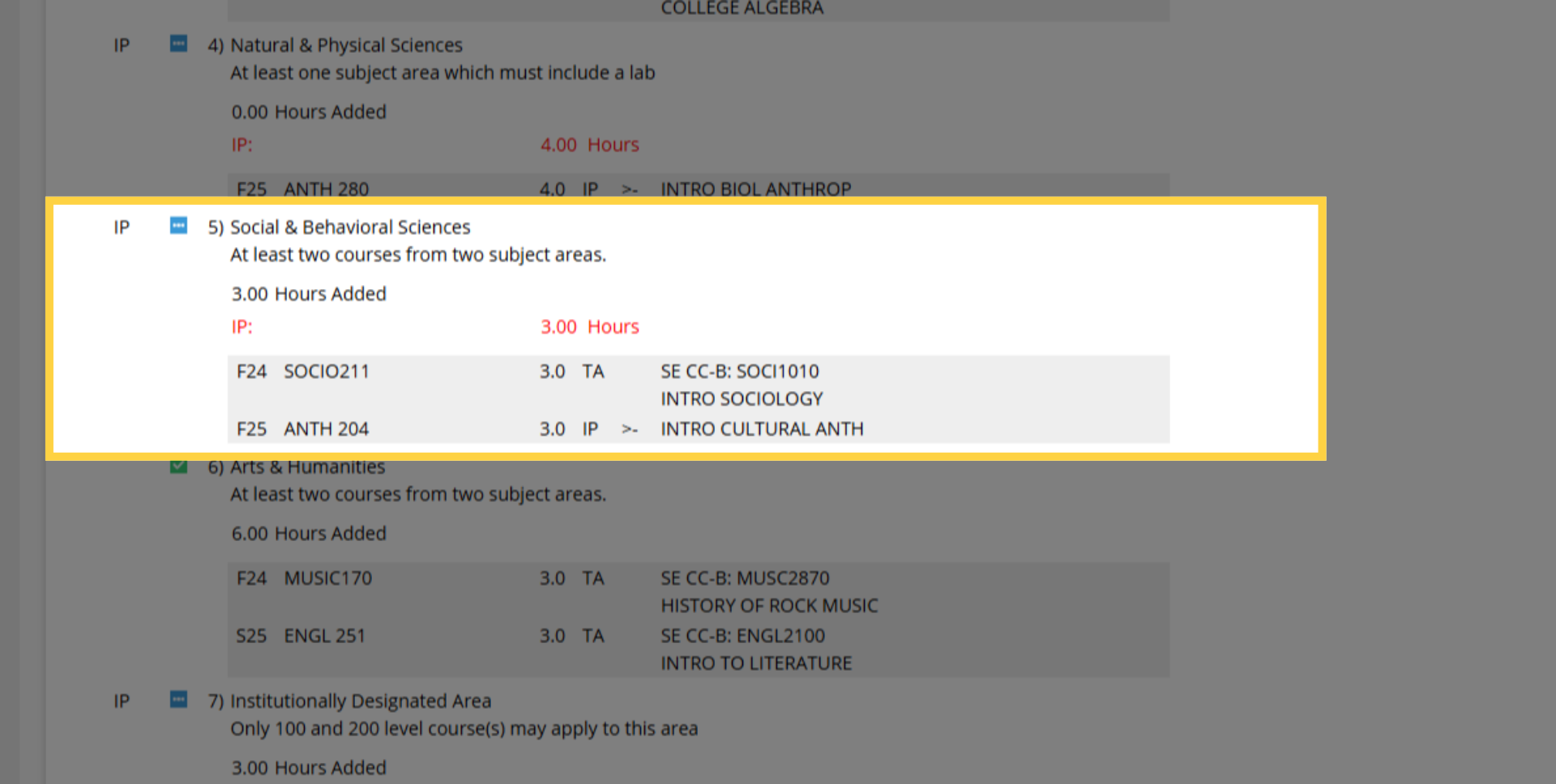
14. Core Requirement Example
This example of a K-State Core Requirement for Social and Behavioral Sciences shows a transfer course Intro Sociology is equivalent to K-State's SOCIO 211 course. "T.A." stands for Transfer Grade which is a Transfer "A". We also see the student is taking Intro Cultural Anthropology at K-State in Fall 2025. "I.P." stands for In Progress. A single letter grade will replace "I.P." when complete, and there will be no "T" for transfer since it's a K-State course.
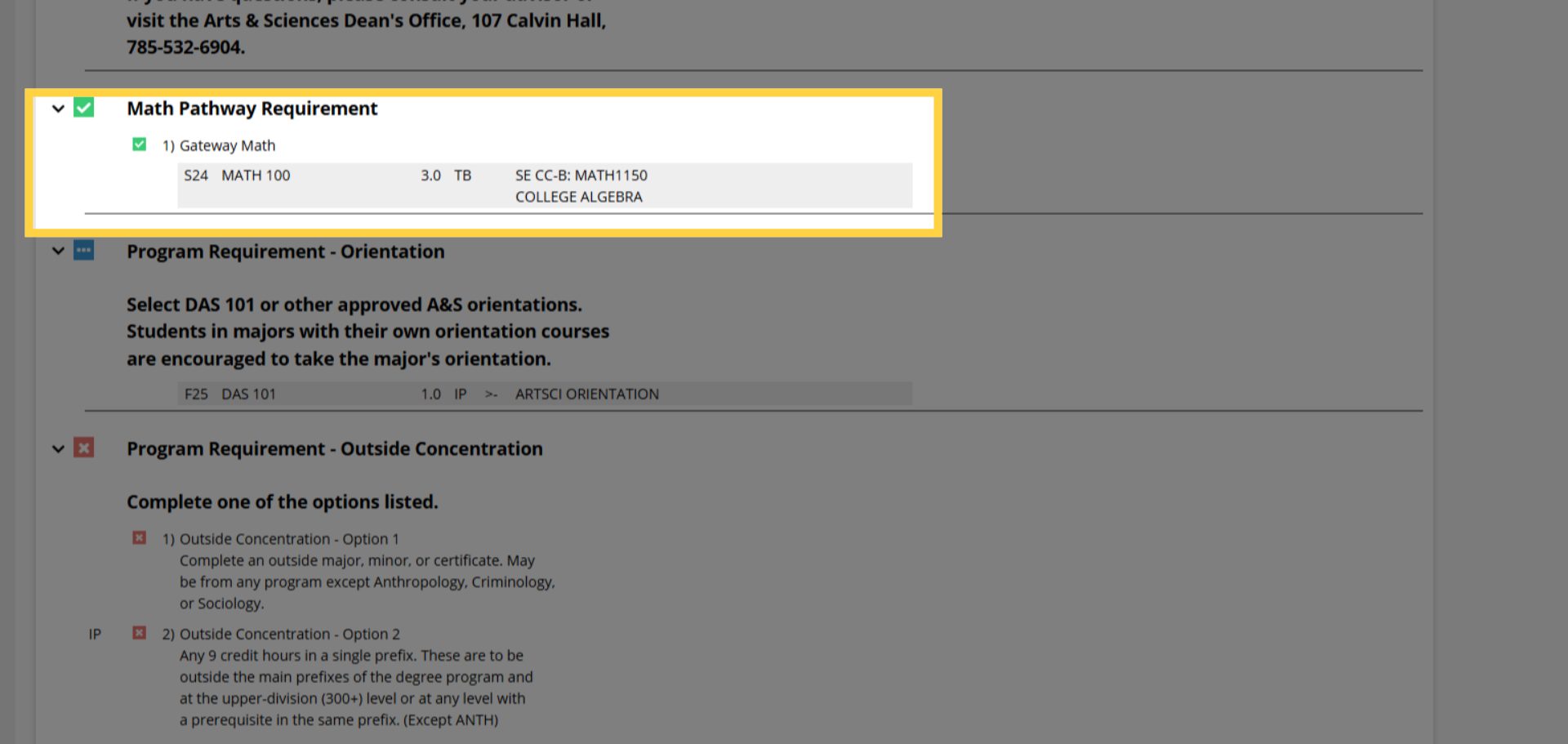
15. Check Math Pathway Requirement
Now we see a Math Pathway Requirement example. The green checkmark means this requirement is complete. Connect with your academic advisor with any questions.
16. View Major Requirements
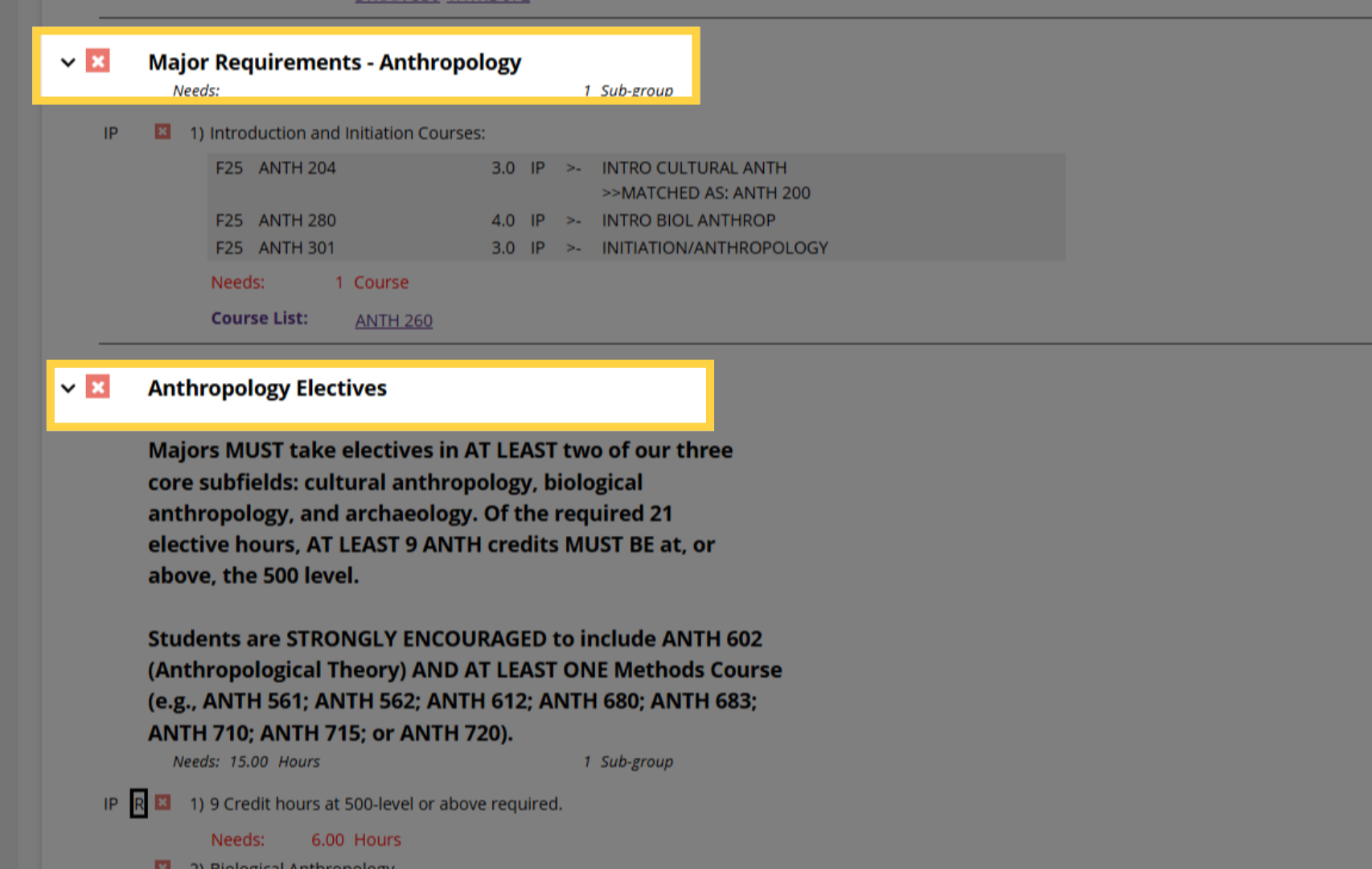
Usually Major Requirements and Professional Electives are fulfilled with K-State coursework. Review the course list in these areas and discuss options with your advisor.
17. Check Unrestricted Electives
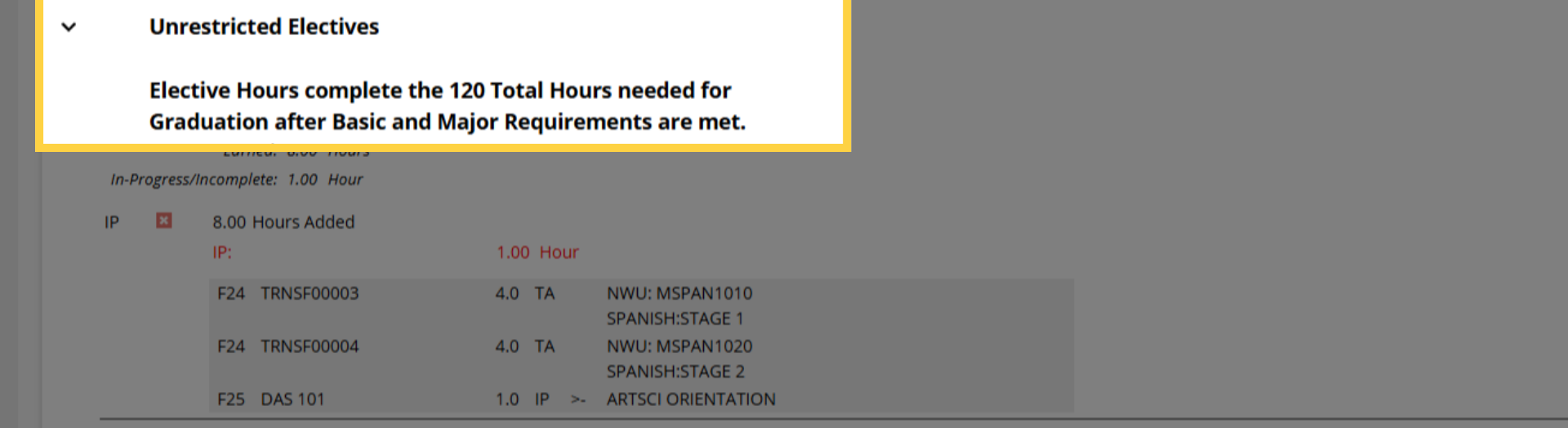
Some programs utilize Unrestricted Electives to help you reach the total hours required for graduation.
18. Transfer Course Analysis
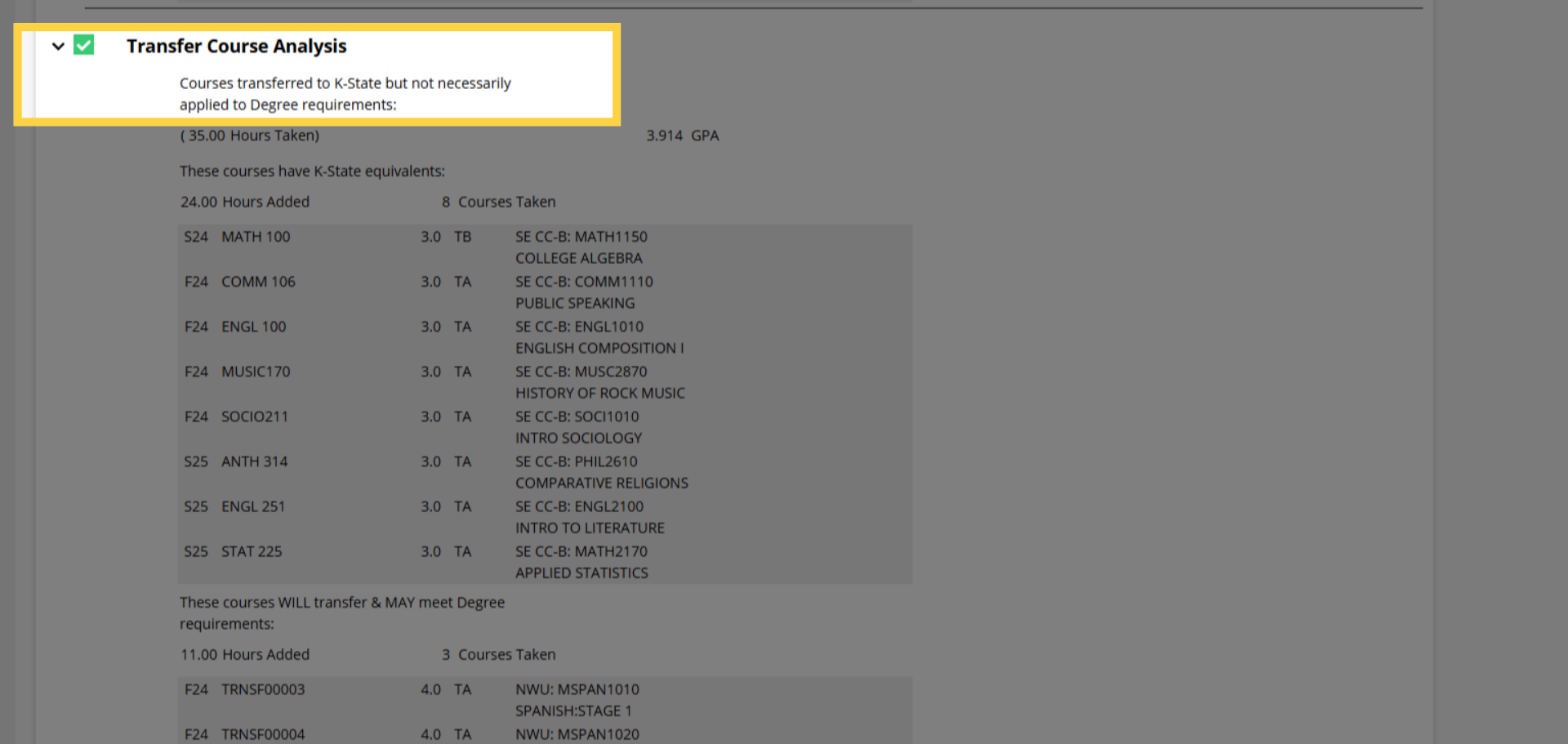
Your list of transfer work is available at the bottom of your DARS. Depending how they transferred, they may have been applied to respective areas within your audit automatically. If you have questions, as always, reach out to your academic advisor. DARS is not always accurate on its own so if you are unsure about something, be sure to ask!
19. 2-Year Transfer College Credit Limit
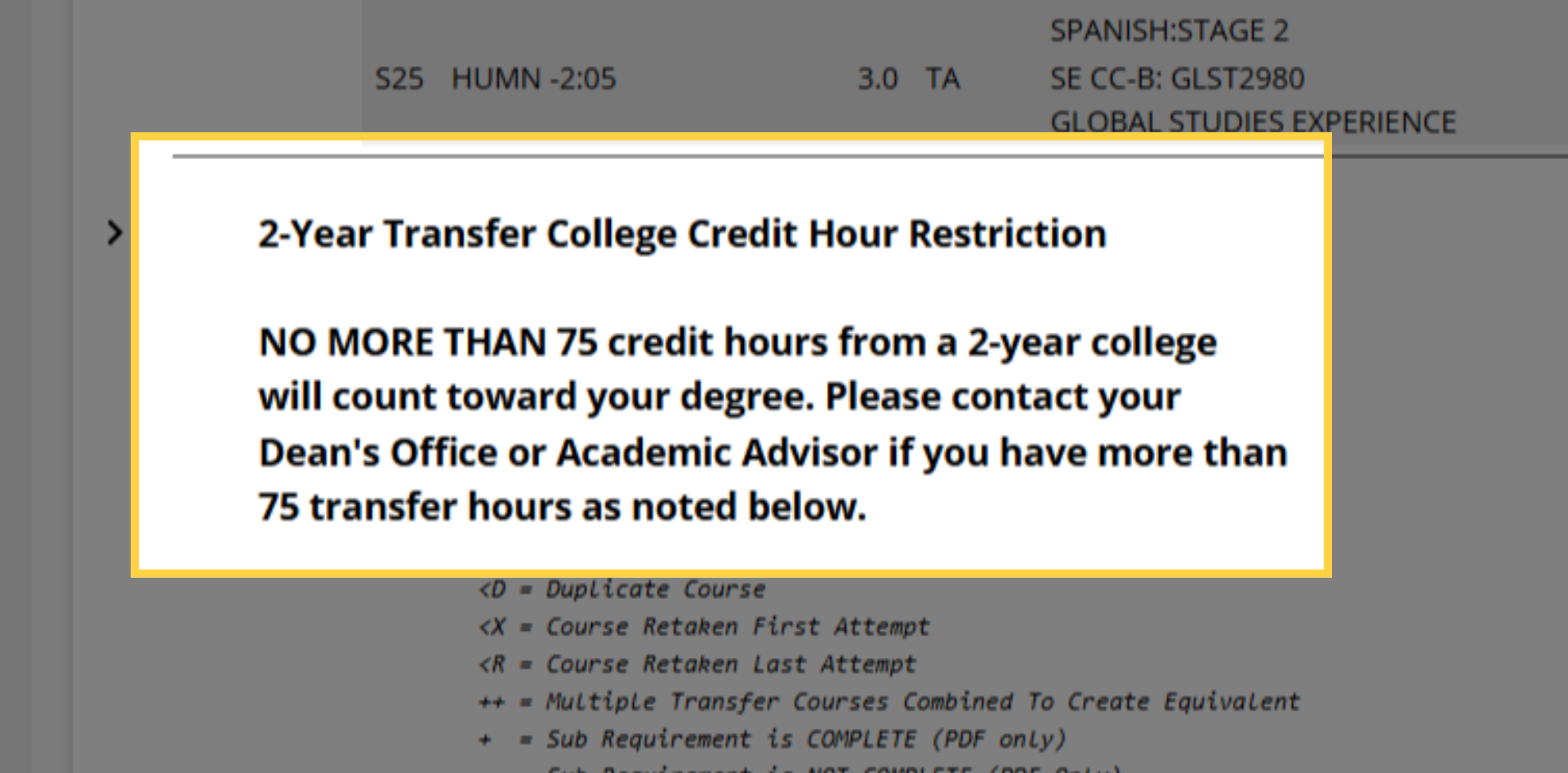
Any transfer classes from a 2-year institution will be listed here to help ensure the number applied is within the maximum allowed.
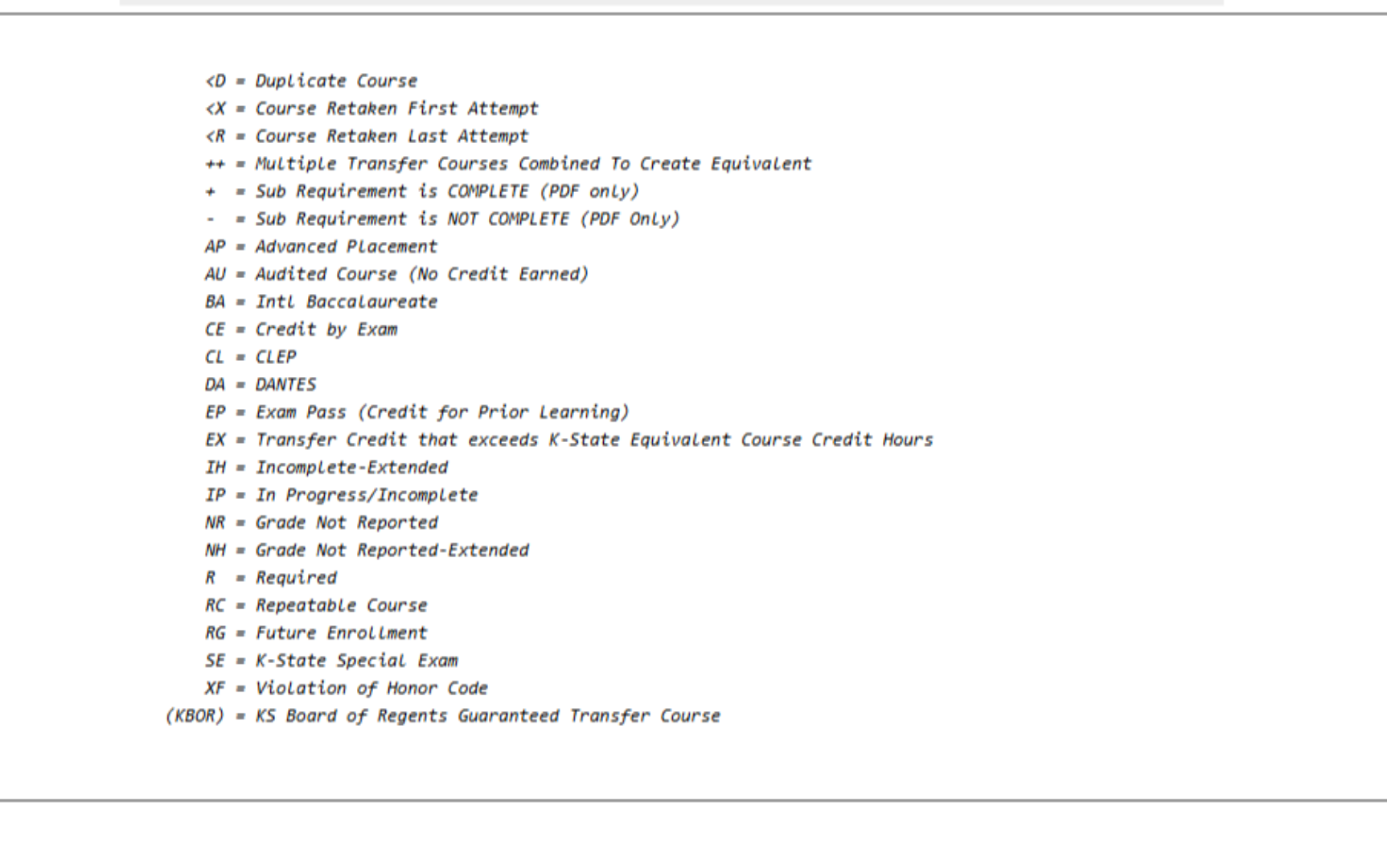
20. View Course Status Legend
This legend at the bottom can help you understand abbreviations throughout the audit.
Remember to review your DARS at least once per semester. For further assistance, consult your academic advisor.
Powered by guidde