It may be important to find information about a student who has dropped or withdrawn or is in a completed/concluded state and their Canvas activity.
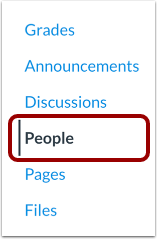
Open the People tool - In Course Navigation, click the People link.
In the Options drop-down menu [1], click the View Prior Enrollments link [2].
This is a 3-dot icon in the upper right hand corner of the People page.
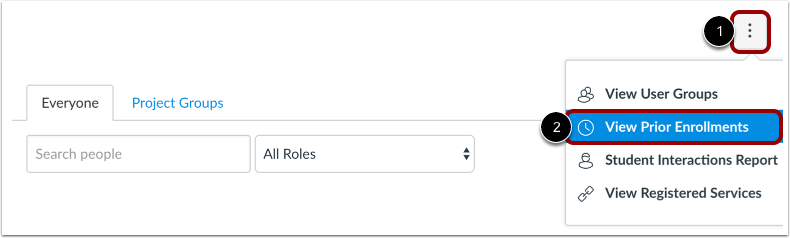
View Prior Enrollments
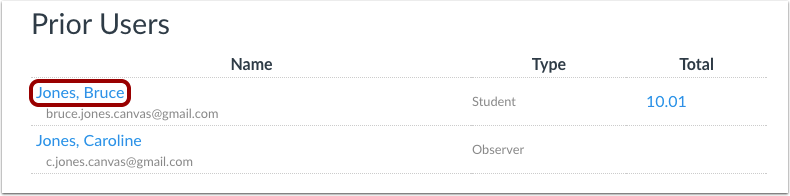
All prior enrollments will be listed alphabetically by last name. To view account details for a prior activity, click the name of the student. This will show the student's detail page and may open in a sidebar that can include links to additional information about the user, such as grades, user interactions, analytics, and outcomes. You can also see the date and time they were added/enrolled by KSIS and also when they were Dropped/Completed. Deleted enrollments do not appear in the prior enrollments.
You can also navigate to the course Settings > Sections tab > Scroll to the Concluded Students section > click on names of individuals for more details.